
Science
The Electrain Series-Caffeine
Our next mitochondrial supplement is caffeine. The word caffeine is derived from the Arabic word “qahweh.” Caffeine was first isolated in 1819 from coffee and

The following is an instructible for an oxidative stress detector, which is meant to measure electro-ionic flow, an indicator of oxidative stress in the body, on the nanoAmp scale. The oxidative stress detector uses a probe connected to a CurrentRanger, a commercially available nanoAmp current meter. These detailed instructions specifically outline how to build an oxidative stress detector with specialized circuitry to measure ultra-low amperage currents. In addition to the probe itself, the detector includes additional features such as WiFi data linking, cloud datalogging, an OLED display, and a portable case.
Oxidative stress is one of many factors that can contribute to inflammation in the body. Using electron donation technology, the oxidative stress detector’s goal is to find the location most suitable to apply an anti-oxidative therapeutic patch, such as the Heliopatch. To achieve this, the detector applies an electrical current through the body in a circuit-like system. Electrons travel from the magnesium disc of the detector, through the nanoAmp reader (which reads the electro-ionic flow) which acts as an anode (and electron donor), through the wand-like probe like a wire, and into the body, which acts as the cathode. Simultaneously, the user’s thumb touches an ionic bridge button which acts as a salt bridge in order to exchange ions with the magnesium disc. This is essential to complete the circuit because as the body is gaining negatively charged electrons, it is also losing negatively charged ions in order to maintain a net neutral charge. The detector is meant to determine one of two factors: regions of high oxidative stress or areas of high conductivity into the body.
Oval.bio’s research indicates areas closer to oxidative stress in the body are believed to attract electrons because of the high concentration of free radicals in these areas of the body. These free radicals, which are often positively charged, have an unpaired electron which desires to gain an electron in order to become paired. This flow of electrons is detected as an electrical current in the nanoAmp range and thus picked up via the probe. Because the body is the primary determinant of electron flow, as the probe is moved toward the area of oxidative stress the transfer of electrons increases, thereby increasing the electro-ionic flow and nanoAmps measured by the detector. Through this method, one could locate where oxidative stress is occurring within the body in a non-invasive manner, and thus optimize relief by finding the ideal location on the surface of the body to neutralize free radicals. Because the user would have to hold the detector in a specific region for an extended period of time in order to facilitate electron donation, the primary therapeutic benefit lies in the Heliopatch when it is placed as an adhesive on this region of the skin. Heliopatch utilizes the same electron donation technology as the detector and is meant to mitigate the effects of oxidative stress. When the patch is placed on areas of oxidative stress, donation of electrons between the patch to the free radicals in the body occurs, resulting in a decrease in oxidative stress. Such a reaction is shown below, where a hydroxyl radical is neutralized from the magnesium ion found in the patch:
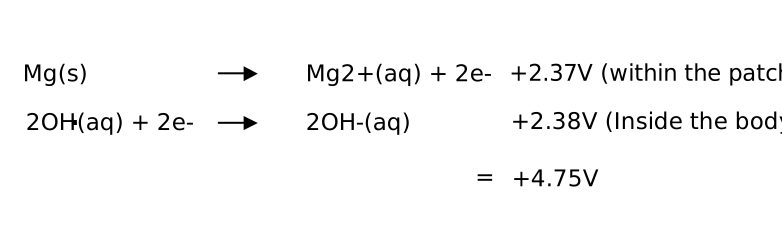
In addition to oxidative stress, electro-ionic flow (as measured in nanoAmps) can also be a strong, positively-correlated indicator of conductivity on the body’s surface. In this case, conductivity is defined as the ability of the surface of the body to facilitate the flow of electrons from an external source to the free radicals that reside in the body. While this transfer might not necessarily occur at a localized area of inflammation or oxidative stress, it is still beneficial to know where an area of high conductivity might exist on the body as these areas will also allow for the most number of electrons to flow from the Heliopatch into the body.
While the Heliopatch is similar to the probe, there are some clear disadvantages to using it on its own, including, most notably, the inability to quantify the actual donation of electrons from the patch, to the body. This is in contrast to the oxidative stress detector, which has the ability to pinpoint and gauge the location of greatest oxidative stress or conductivity into the body. Additionally, given the fact that the patch is location specific, where it is placed (even if just a few inches away from the area of true oxidative stress) can lead to a significant difference in the quantity of electrons that are transferred therefore decreasing its therapeutic value. The fact that the patch is immobile makes it difficult to determine where to best place it on the body, which is a problem the probe is able to solve. Thus, both the probe and patch used in tandem can produce the best results: the probe tells the user the best location to put the patch.
The inspiration of old.oval.bio’s patent-pending, open-source design came from the company’s quest to build life extension pods using a variety of therapeutics including electron donation technology. One of the original goals of electron donation in the pod was to determine the locations where oxidative stress was occurring on the body. To do this, two different prototypes of the pod included a gantry system of tentacle-like rubber probes to go across the user’s body and separately, a bed of soft needles in the pod which a user would lay on. While it was found that these designs were convoluted and didn’t provide optimal user comfort, it was in developing this technology that the idea for making a handheld version of this oxidative stress detector came about.
The oxidative stress detector uses Arduino software, specifically the IDE. To download the Arduino IDE, please refer to this link.
Bill of Materials (Unit costs revised August 2020)
Additionally, basic workbench tools, solid core wires, Dupont wire housing, soldering materials, and your 3D printer software/filament are needed to complete this project.
*Home Depot, Lowe’s and other specialty hardware stores can cut this to the appropriate size if you do not have the appropriate tools
Step 1: CurrentRanger and OLED Screen
Section 1A:
First start with a blank CurrentRanger Board as shown below (Figure 1A.1).
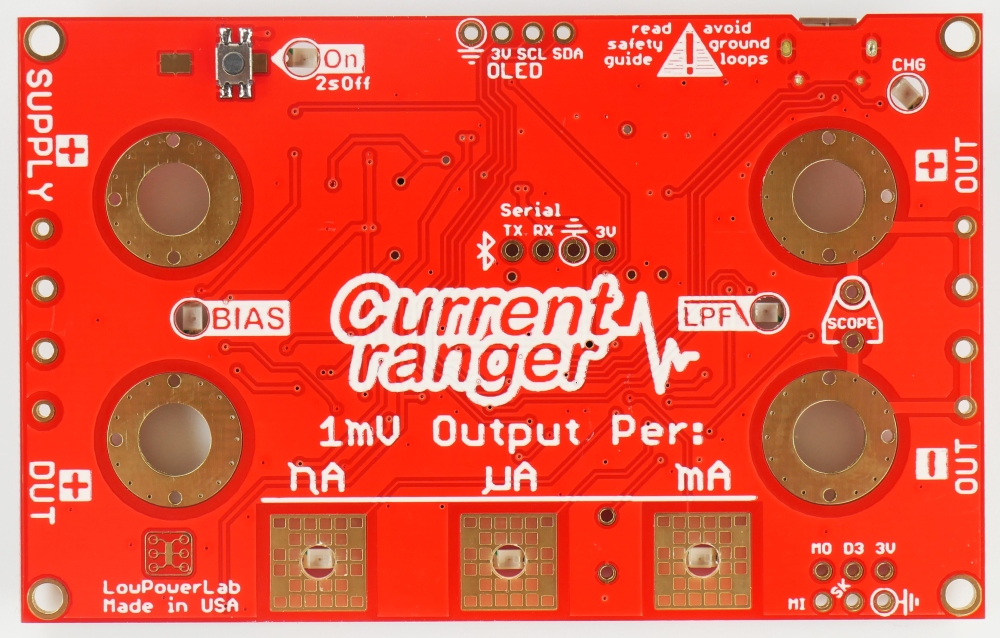
Next, place and solder two 4 by 1 Dupont Jumper Wire Housings on the OLED and Serial Pin locations on the CurrentRanger Board (Figure 1A.2). Solder these pins in prongs-down (relative to the top of the board).

Before the CurrentRanger is capable of downloading anything, some code and libraries will need to be installed. First, the Current Ranger board support package, which can be simply downloaded as an IDE file needs to be installed. To do this, go to “Arduino” > “Preferences” and in the text box labeled “Additional Board Manager URLs”, copy and paste this link: https://lowpowerlab.github.io/MoteinoCore/package_LowPowerLab_index.json. Close out of the Arduino IDE. Then reopen the IDE and go to “Tools” > “Board” > “Board Manager”. Search “Ranger” in the search bar and install the LowPowerLab Board Manager.
The zip files of several libraries also need to be installed including libraries for emulating the EEPROM, the touch control pads, and the display driver. Once these zip files are downloaded, go to “Sketch” > “Include Library” > “Add .ZIP Library” and add each of the three libraries.
To ensure that the board is functioning properly, we will run one of three sketches that will be eventually downloaded onto the CurrentRanger. Assuming you already have the Arduino IDE installed, download the cr_bt_force.ino sketch from the old.oval.bio GitHub repository or download the file from the open source Google Drive folder.
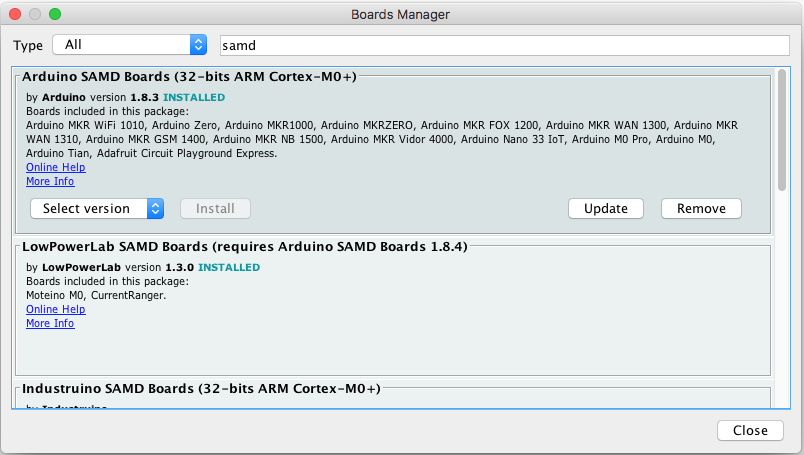
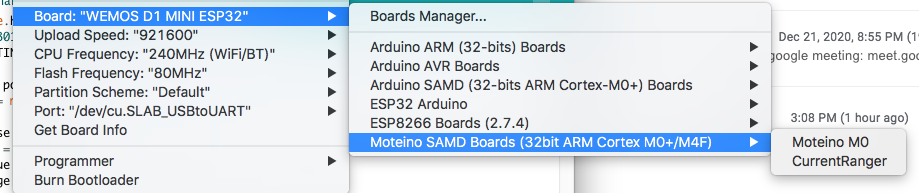
Once the code is in the Arduino IDE, ensure that the proper board support is installed. From the menu bar, go to “Tools” > “Board: [some name],” and select “Boards Manager” (Figure 1A.3). Once there, search for “samd” and navigate to the “Arduino SAMD boards” option. If the SAMD screen support is not enabled, there will be an “Install” button (Figure 1A.4), in which case you should install the latest version of the package. If you see an “Update” button, make sure to update the package (Figure 1A.5). The window will also indicate if this package is installed and fully updated (Figure 1A.6). Once the package is installed and updated, the proper board support is enabled.



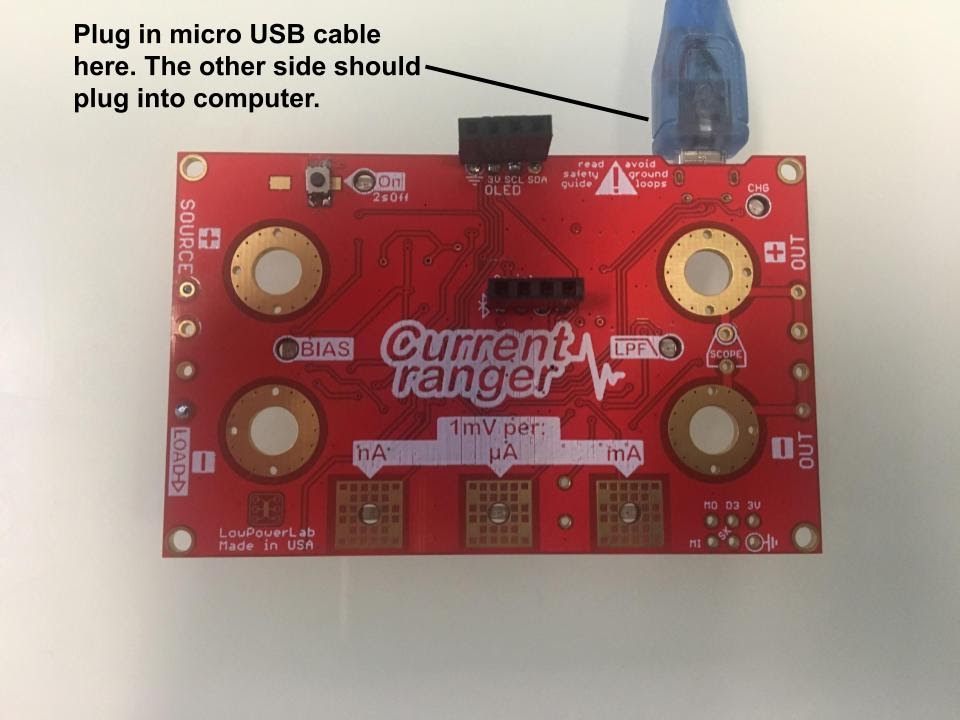
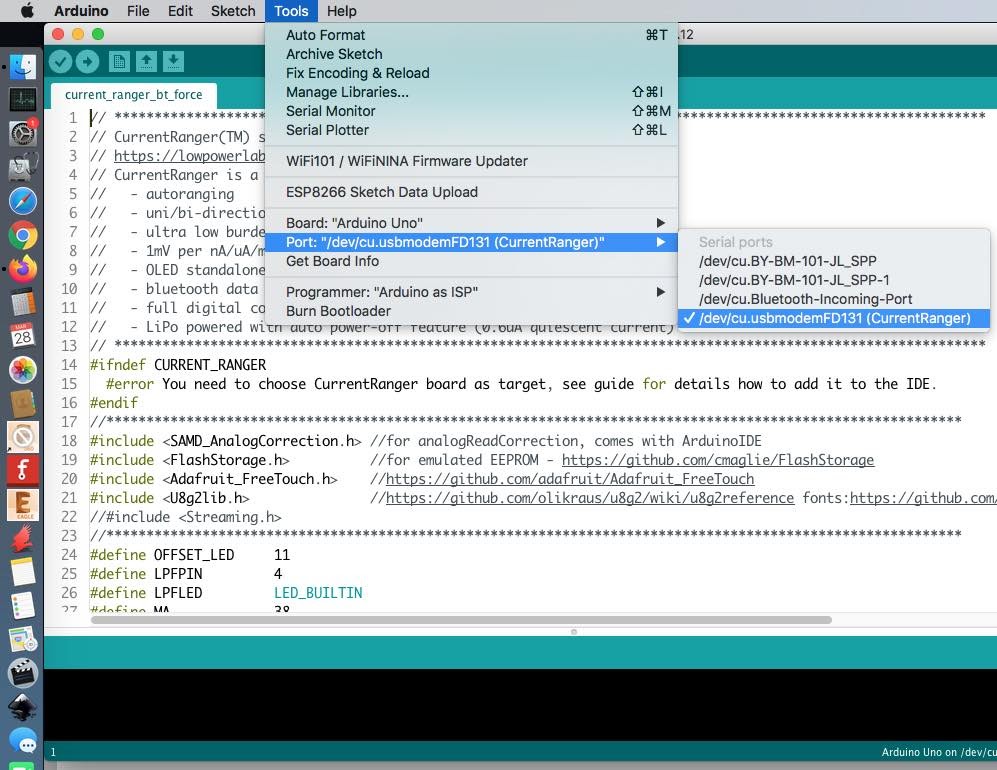
Additionally, ensure the correct boards and ports are selected. Make sure the micro USB cable is connected to the CurrentRanger and the computer (Figure 1A.7). Then, from the menu bar, go to “Tools” > “Boards,” and select “CurrentRanger” (Figure 1A.8). Then, also from “Tools” in the menu bar, go “Port” and ensure that an “CurrentRanger” is selected (Figure 1A.9).
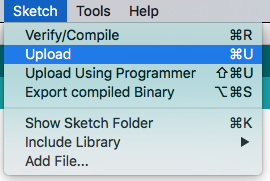
To upload the program onto the Arduino, navigate to the menu bar, and go to “Sketch” > “Upload” (Figure 1A.10). Make sure to double check the settings and upload the code each time the sketch is updated.
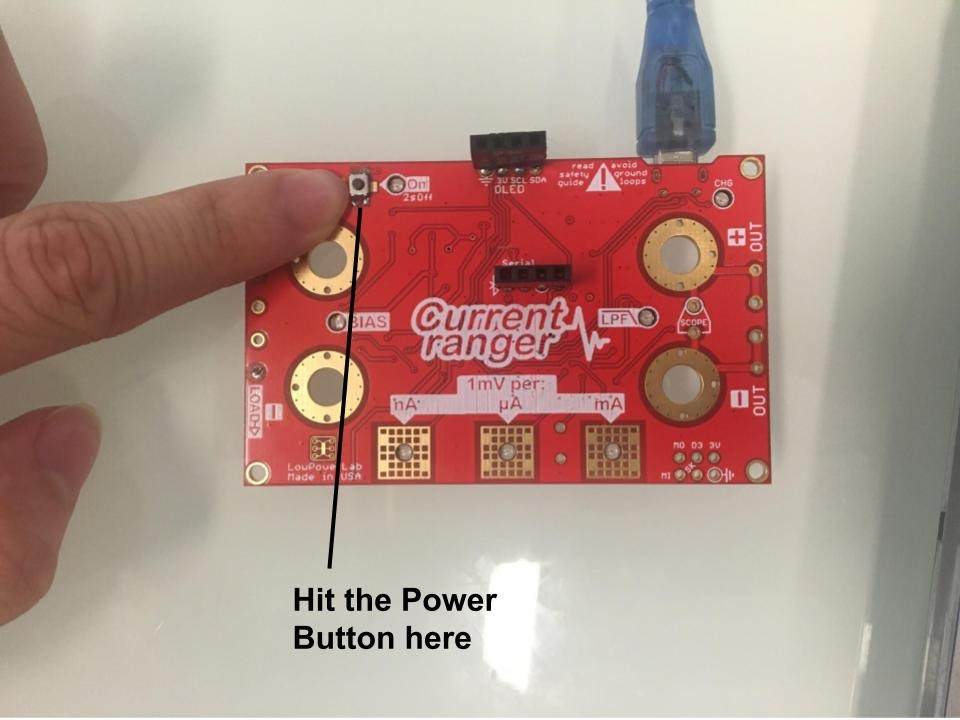
If the following steps were downloaded correctly, turn on the board by hitting the power button (Figure 1A.11) and the board should light up as shown (Figure 1A.12).

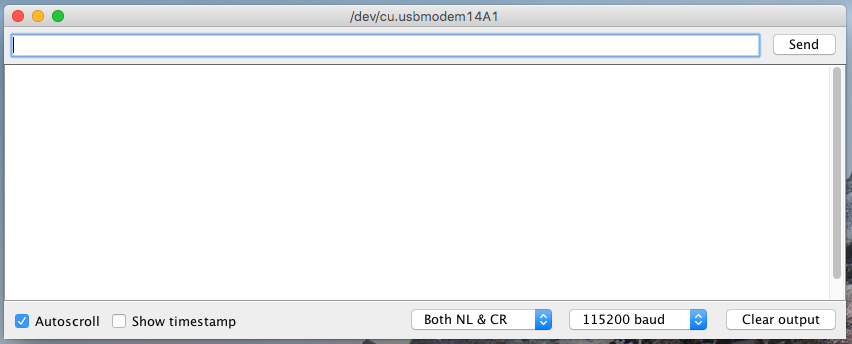
Additionally, with the Serial Monitor in the Arduino IDE pulled up, there should be several readings being read from the CurrentRanger. On the nanoamp scale, these values should be fluctuating a bit as well and be greater than 0. If the serial monitor is not displaying correct values, ensure the speed is set at the correct baud: 115200 baud (Figure 1A.13).
An additional optional step to check the work in the previous section involves plugging in a four-prong OLED screen into the CurrentRanger’s OLED socket. The OLED screen should be reading the same values that are shown on the Serial Monitor. It is worth noting that the OLED screen’s values are rounded to the nearest tenth, whereas the values on the serial monitor are rounded to the nearest whole number. When finished testing, remove the four pin OLED screen.
Ensure that each time the CurrentRanger needs to be removed from the computer to turn off the CurrentRanger by holding the power button until the lights turn off, and unplug the CurrentRanger from the computer. This applies for all steps in the rest of the instructable where we plug the CurrentRanger into the computer.
Section 1B:
Set the board to the side. We will now work on the OLED display for the oxidative stress detector.
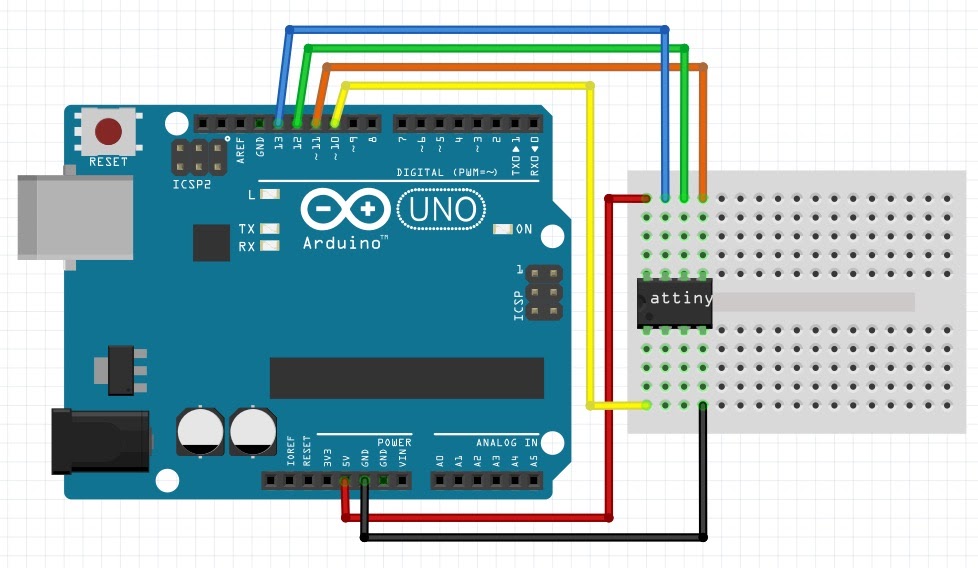
First we will need to connect the ATTiny microprocessor so it can be programmed. Connect the ATtiny with your Arduino such that it looks like the schematic below (Figure 1B.1)– the pins on the Arduino correspond to the pins on the ATtiny.
Next, install board support for the ATtiny, which can be found here. This support is needed so that the ATtiny is treated as an Arduino. Then, upload an example sketch onto the Arduino Uno. This file can be found in the Arduino IDE by going to “File” > “Examples” > “11.ArduinoISP” (Figure 1B.2). Then, ensure that the ATTiny board manager, which can be found here, is loaded. Download the oled_init_attiny13.ino sketch from the old.oval.bio GitHub repository or download the file from the open source Google Drive folder.
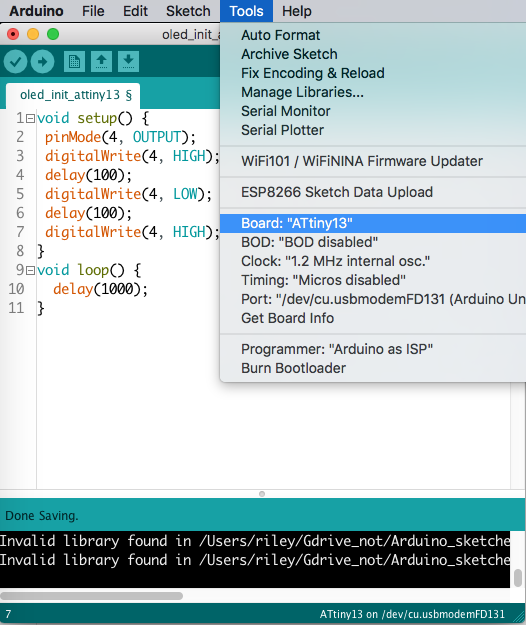
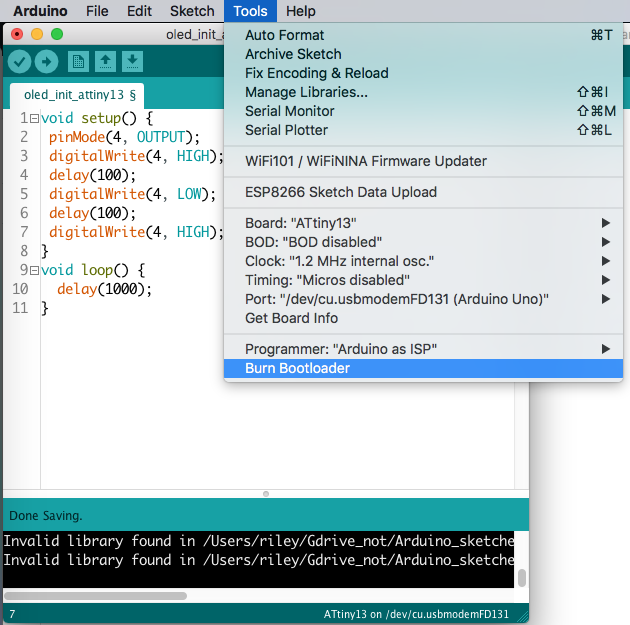
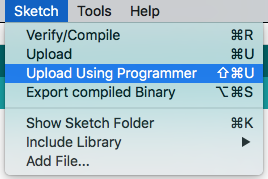
After connecting the Arduino to your computer, make sure the following settings are in place before uploading the sketch. Under the “Tools” menu, set board to “ATtiny 13,” make sure BOD is disabled, clock is 1.2 MHz interal osc., and Port is Arduino Uno (Figure 1B.3). Then select “Burn Bootloader” in the “Tools” menu (Figure 1B.3). Once that is complete, select “Sketch” > “Upload Using Programmer” (Figure 1B.4). Once the attiny is programmed, unplug the Uno from the computer, then disconnect the ATtiny processor from the programming breadboard.
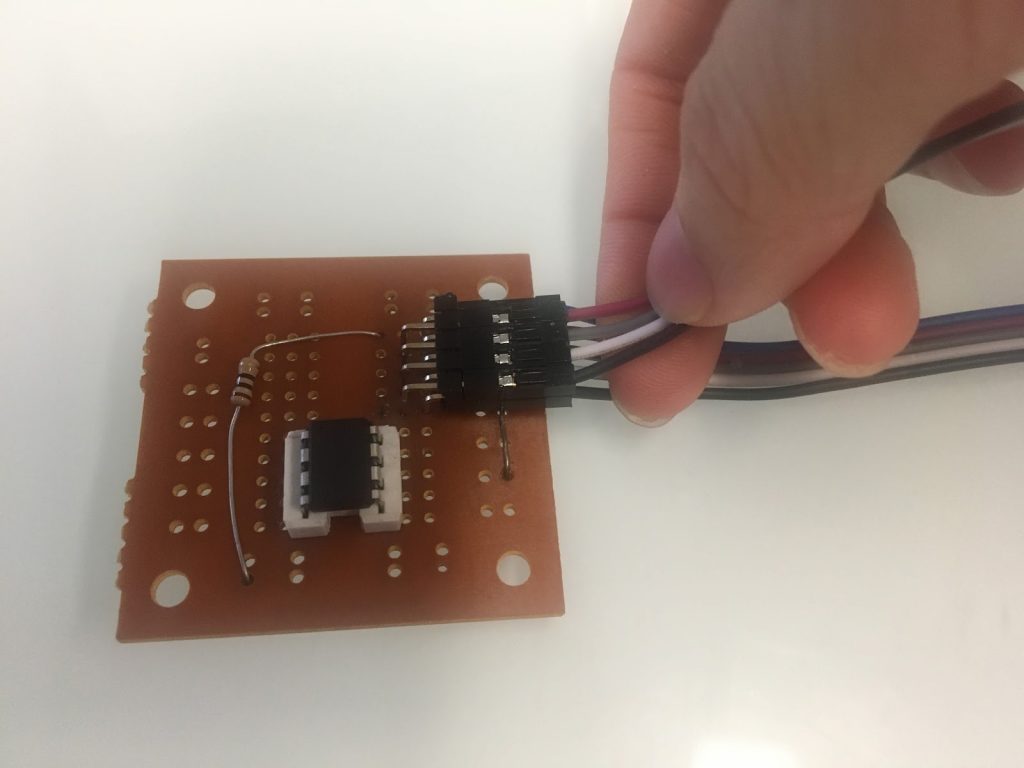
Then, take the 10 pin header and take out one of the corner pins. Next, your blank breadboard and fit it to the schematic below using a resistor (10 Ohms as specified in the BOM), a nine pin header pin, and chip (Figure 1B.5). Take note of the two rows (of the nine pin header) on the schematic labeled “Row 1” and “Row 2” for future steps. Bend these header pins 90 degrees such that their open ends of the housing are above the edge of the board (Figure 1B.6). Our model also has a dip socket to attach the chip to the board (not required), as seen in the picture.
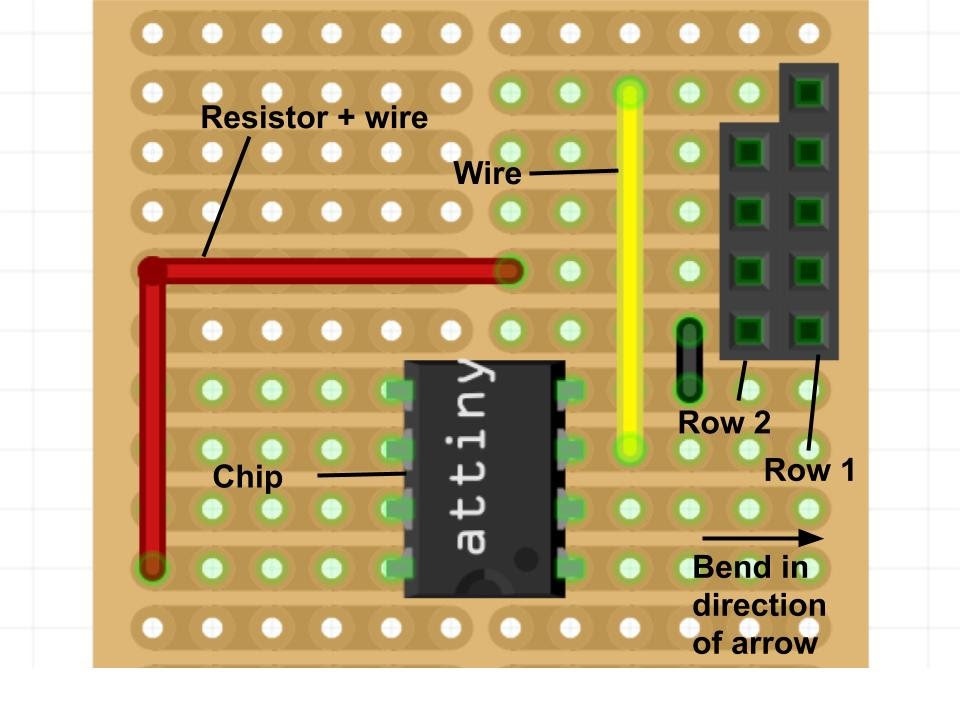

Plug in five Dupont jumper wires (which consist of housing and wires) into Row 1– the row with five header pin holes– on the breadboard (Figure 1B.7). Row 1 is shown on the schematic, Figure 1B.5.

Plug in four Dupont jumper wires into Row 2– the row with four header pin holes– on the breadboard (Figure 1B.8). Row 2 is shown on the schematic, Figure 1B.5.
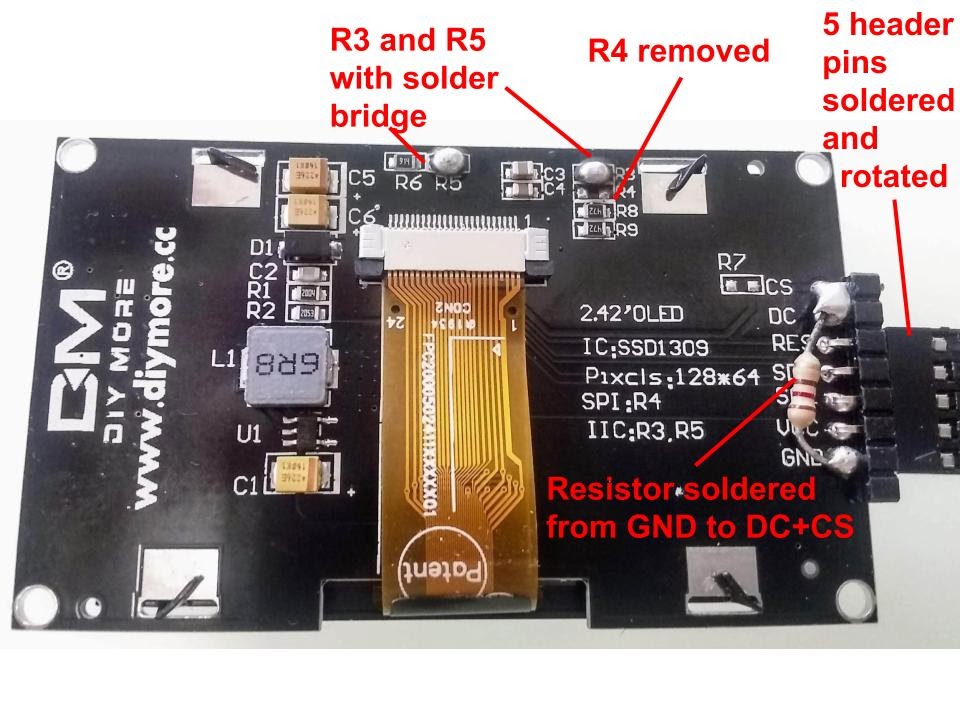
Set the breadboard to the side. Take the OLED screen and, on the back of the OLED, remove the resistor R4, and add jumpers R3 and R5 with a solder bridge (an alternative to a solder bridge is a low value resistor). Then, solder in five header pins into the GND through RES holes. Finally, using solder, tie DC and CS together with GND with a resistor (or jumper wire). Turn the header pins 90 degrees such that they face the closest edge of the OLED display as shown below (Figure 1B.9).
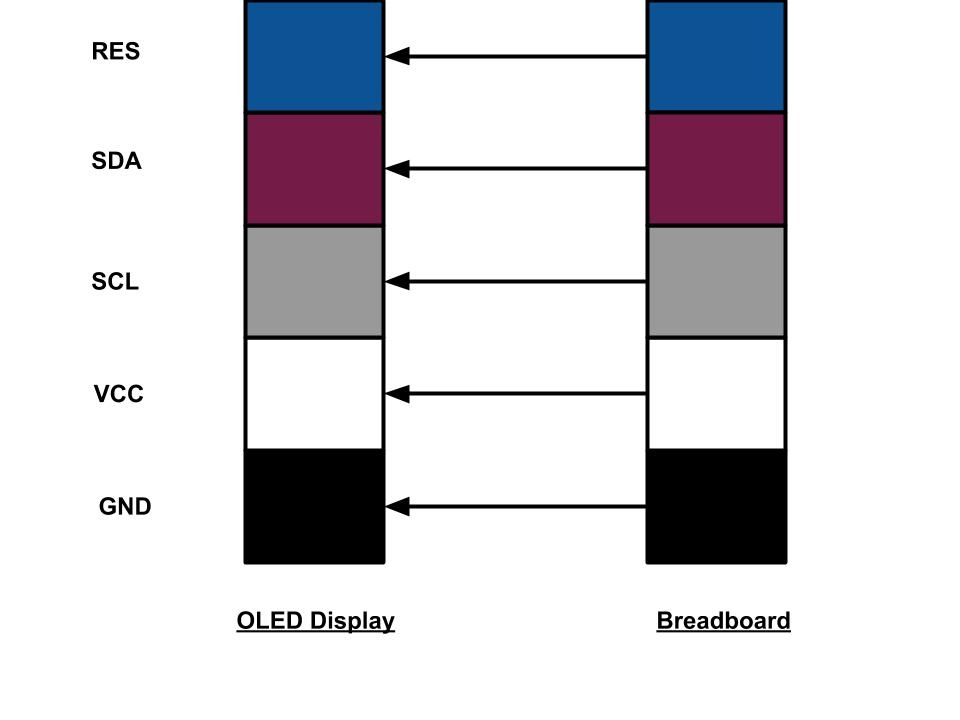
Taking the breadboard and wires, connect Row 1 (as labeled in Figure 1B.5) to their associated pins on the OLED display (Figure 1B.10). Ensure the correct wires are connected in a “one-to-one” fashion (i.e. connect the ground wire to the ground pin). A helpful illustration is provided below (Figure 1B.11).
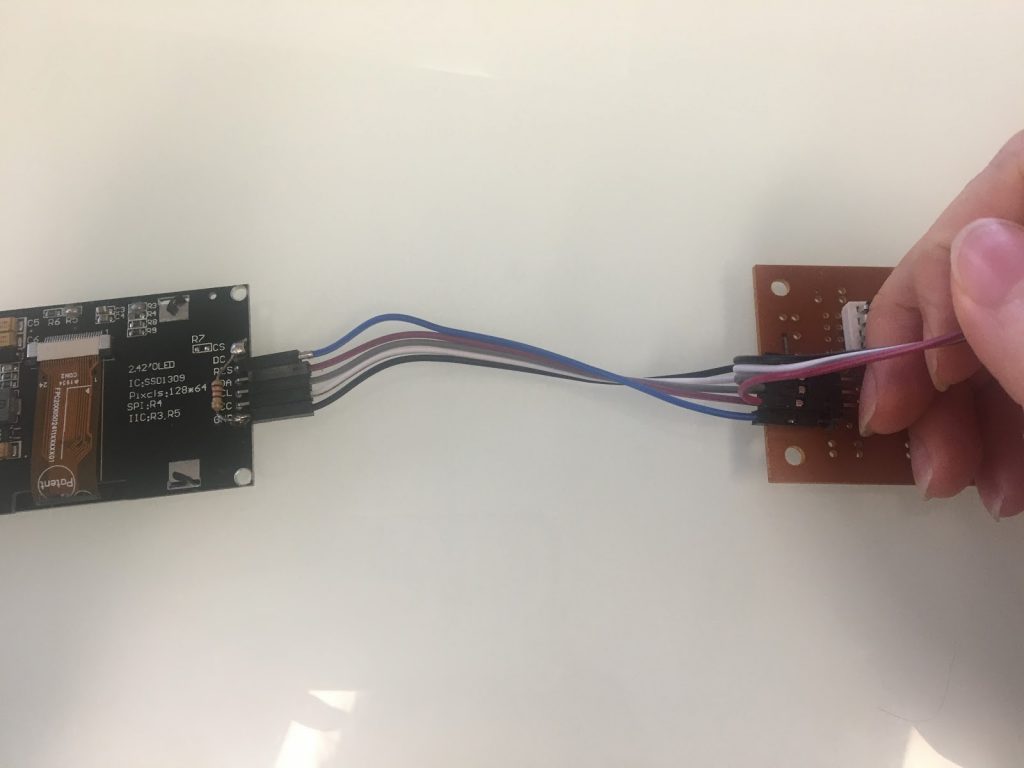
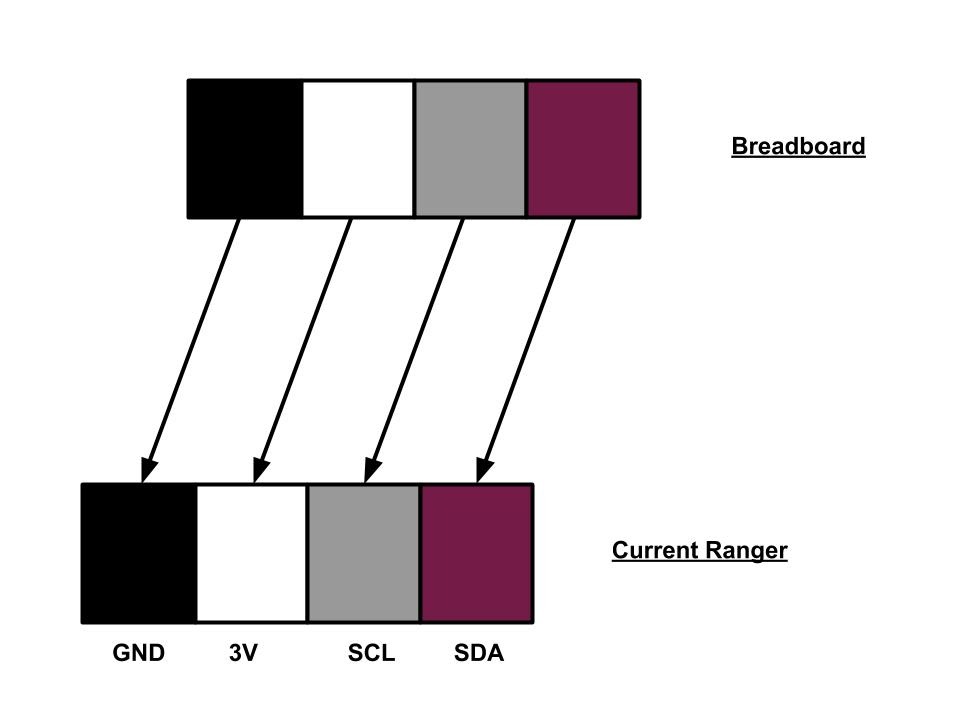
Next, plug in the wiring from Row 2 on the breadboard (as labeled in Figure 1B.5) to their associated pins on the CurrentRanger, on the four holes near the top of the board labeled “OLED” (Figure 1B.12). Once more, ensure the correct wires are connected in a “one-to-one” fashion (i.e. connect the ground wire to the ground pin). A helpful illustration is provided below (Figure 1B.13).

Next, we will double check to make sure that the OLED screen is working and properly connected. First, confirm that the board manager SAMD is downloaded and updated (instructions for this can be found in Figure 1A.3 through Figure 1A.6).
Once the OLED display is connected properly click the power button. The lights on the CurrentRanger should turn on and the OLED display should turn on displaying something similar as below (Figure 1B.14), and the same readings displayed on the serial monitor and four prong OLED in Section 1A. The numbers on the screen should be changing, and greater than zero when the CurrentRanger is set on the nanoamp scale. Once the OLED installation is confirmed to be correct, turn off the CurrentRanger by holding the power button and unplugging the micro USB from the board.

Section 1C:
Cut two solid core wires, approximately 6 inches in length (preferably of two different colors to make it easier to distinguish in later steps). One such wire is shown below (Figure 1C.1). Remove the insulation from the ends of both of these wires– about an eighth to a quarter of an inch in length on both sides.

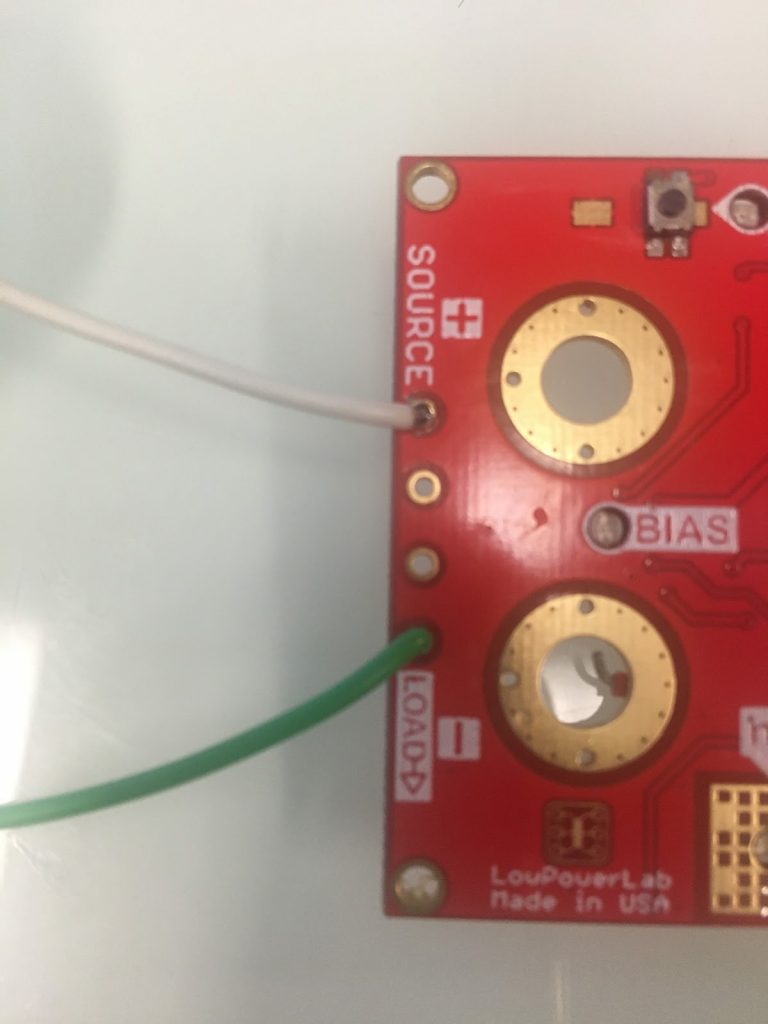
Next, solder the two wires into the CurrentRanger. On the left side of the board, one end of one of the wires should be soldered into the “SOURCE (+)” hole of the CurrentRanger, and the other should be soldered into the “LOAD (-)” hole of the CurrentRanger (Figures 1C.2 and 1C.3).

Next, take two Dupont jumper wires(Figure 1C.4), which should be approximately 6-8 inches in length.

Bend the one end of each wire at about a 45 degree angle (Figure 1C.5).

Solder one end of one of these wires to one of the solder pads next to the on-off switch of the CurrentRanger. Solder the other wire to the solder pad diagonally opposite from the previous wire (Figures 1C.6 and 1C.7). Ensure there is sufficient solder such that the wire stays in contact with the solder pad, but not too much such that the solder comes into contact with any adjacent solder pads.
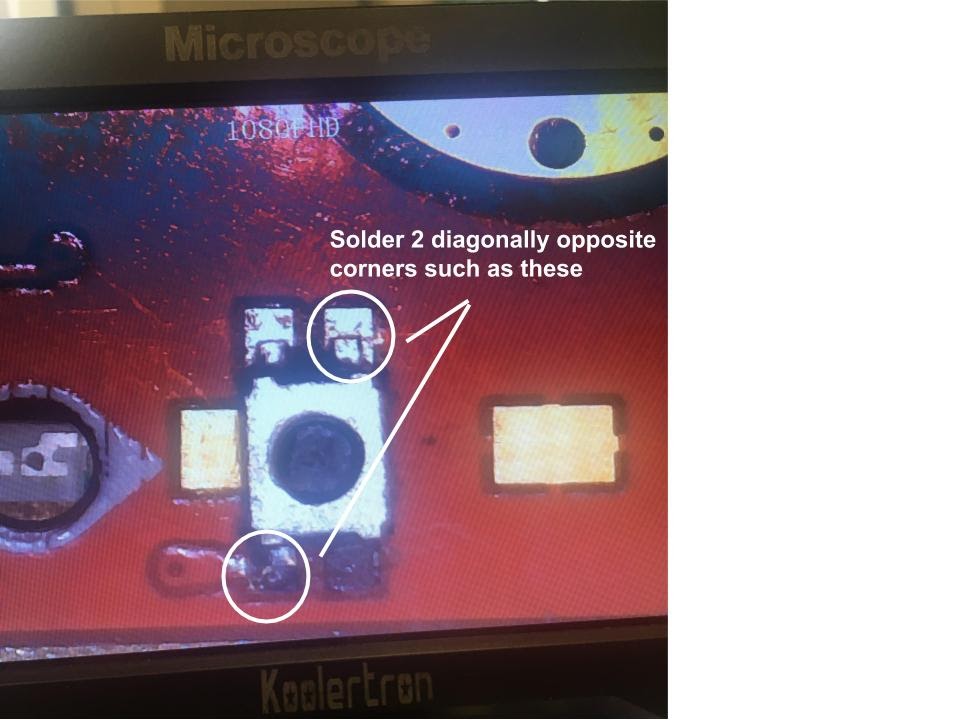
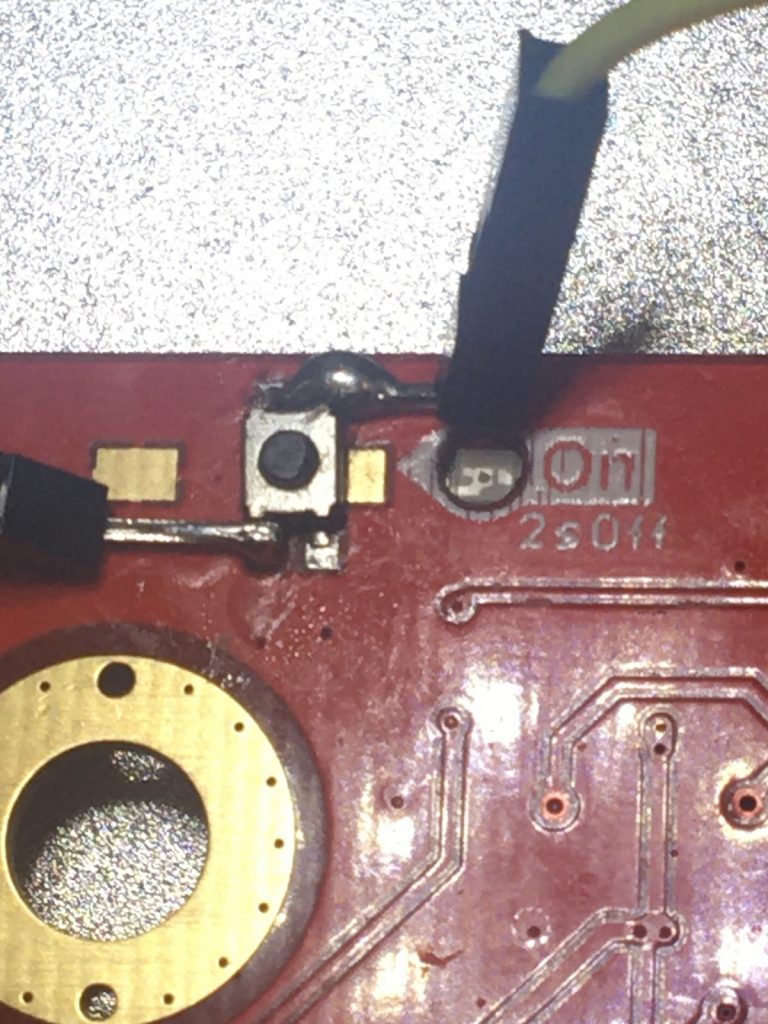
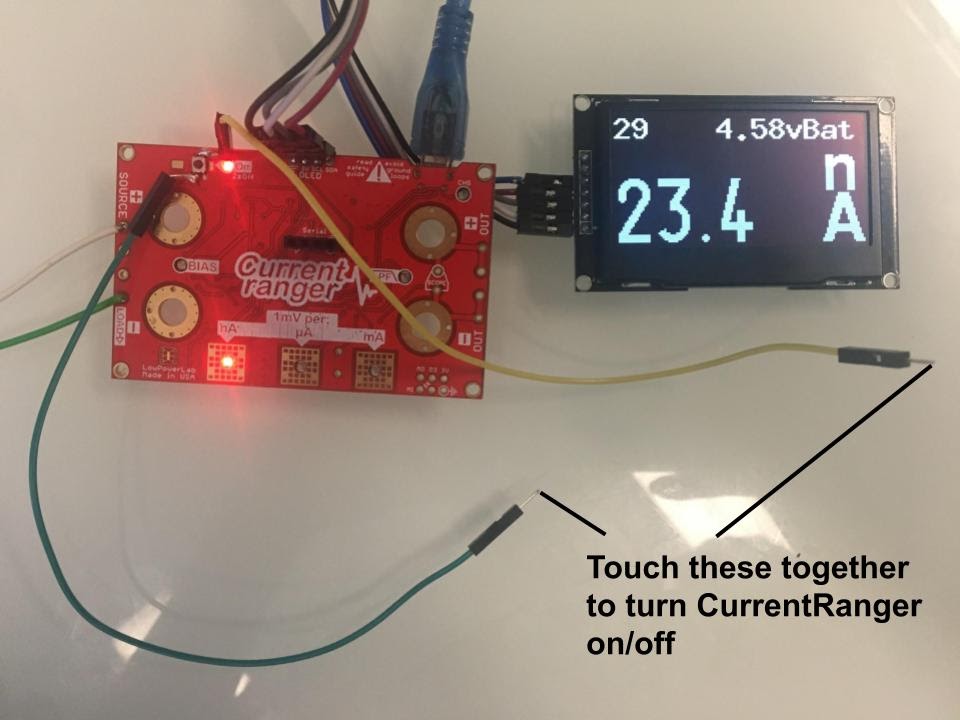
To test the soldering done in the previous step, plug in the CurrentRanger into a computer via the micro USB. Touch the exposed housing of the two wires that were just attached. The OLED screen should turn on after a couple of seconds (Figure 1C.8). If it does not turn on, reattach the previous two wires with Dupont housing. Turn off the OLED by holding the wires together a second time.
Step 2: Probe Construction
Section 2A:
Cut two pieces of the lead wire– each approximately 5 feet in length. One such wire is shown below (Figure 2A.1).

Take off approximately a half inch of insulator on both sides of each wire. Pinch and twist the exposed copper wire on all of these ends. An example of one such end is shown below (Figure 2A.2).

On one end of each wire add a banana plug and its outer sleeve. While all four plugs that are ordered are the same, it is recommended that one wire has banana plugs of the same “color” in future steps. The color of each banana plug is determined by the color of the FOSPOWER logo on the outer sleeve (there are two reds and two blacks). To do this, simply put a red banana plug on the end of one wire and a black banana plug on the end of the other (Figure 2A.3). Instructions on how to insert the banana plugs are also provided below (Figure 2A.4).


Next, print the casings for the respective plugs, which are the files anode_plug.stl, anode_holder.stl, inner_sleeve.stl, and outer_sleeve.stl. These files are all found in the open source Google Drive folder.
Once the parts are printed, slide the anode cap and anode plug on the black (negative) banana plugs (Figure 2A.5), and the inner and outer sleeves on the red (positive) banana plugs (Figure 2A.6). The final product should look something like Figure 2A.7)


Section 2B:
Print the part endcap1b.stl (not to be confused with endcap1.stl), which can be found in the open source Google Drive folder.
Next mount the power button onto the endcap1b print and the USB extension. Install all the jacks onto the endcap1b print. Then, solder the positive (red) wire onto the plug with the red banana jack and the negative (black) onto the black banana jack. Solder the power wire onto the power button. Then, take the micro USB to USB A adapter plug that into the usb extension– use two 3 mm screws to mount the USB adapter (Figures 2B.1 and 2B.2).


Section 2C:
Set the CurrentRanger and OLED display to the side, we will now work on the wifi development board for the oxidative stress detector.
Take the blank wifi module as shown below (Figure 2C.1).
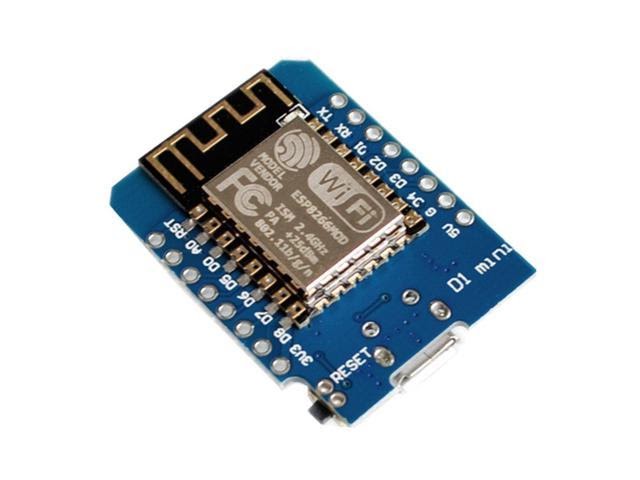
Before the WiFi Module is installed, another board manager will have to be installed, specifically the NodeMCU Support File. To download this, go to “Arduino” > “Preferences” and in the text box labeled “Additional Board Manager URLs”, copy and paste this link: http://arduino.esp8266.com/stable/package_esp8266com_index.json . Close out of the Arduino IDE. Then reopen the IDE and go to “Tools” > “Board” > “Board Manager”. Search “esp8266” in the search bar and install the board manager that is displayed. Download this file by connecting the WiFi module to the computer.
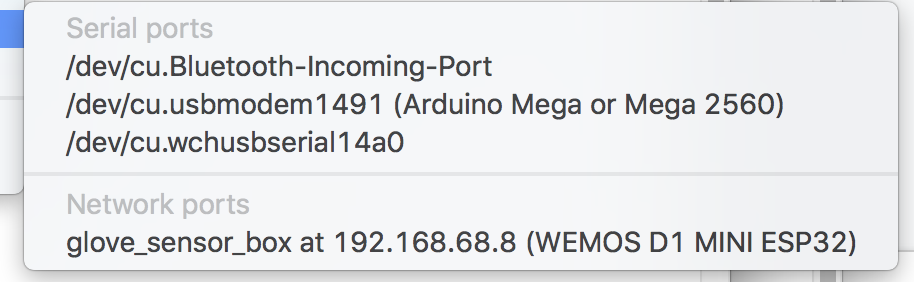
Then, go to “Tools” > “Port” and select the option that says “cu.wchusbserial” (Figure 2C.2). Next, adjust the board settings such that the board is “LOLIN(WEMOS) D1 R2 & mini”, the upload speed is 115200, the CPU frequency is 160 MHz (Figure 2C.3). Make sure that the rest of the board settings match the rest of the settings shown on Figure 2C.3 as well. Then download the meter_telemetry.ino sketch from the old.oval.bio GitHub repository or download the file from the open source Google Drive folder. Then, upload this sketch to the WiFi module by going to Sketch” > “Upload” (Figure 1A.10).

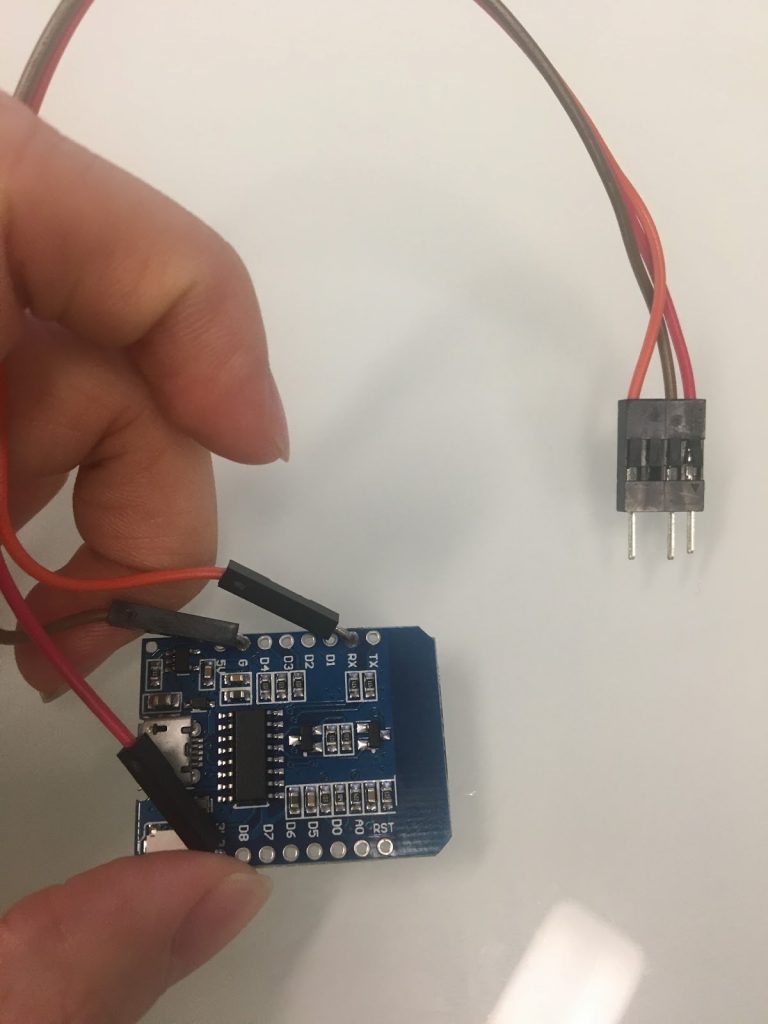
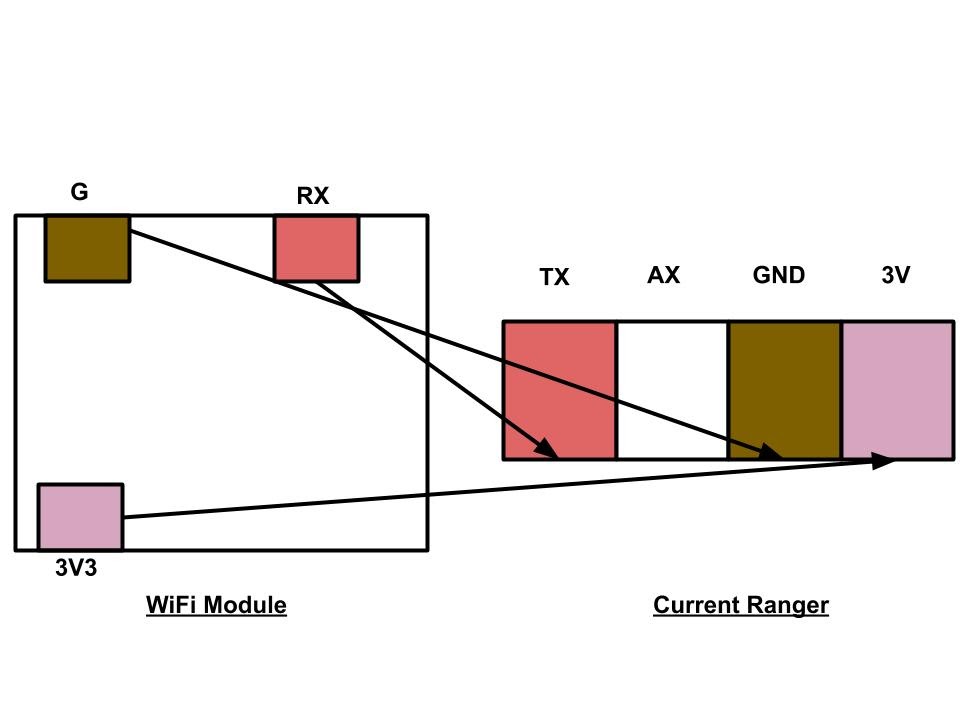
Next, solder 3 pin male cables to board on these holes: 3V3 RX GND (Figure 2C.4). Then, connect these wires (the ESP board RX connects to the Current Ranger TX) to the CurrentRanger’s serial wifi boards (Figure 2C.5 and 2C.6)

Step 3: Box Construction
Section 3A:
Print the file called LCD_holder.stl which can be found on the open source Google Drive folder. Using a total of 10 zip ties, zip tie the hardware to the holder– use 1 for the adapter, 2 for the Current Ranger (through the large holes), 4 for the LED screen (one on each corner), 2 for the battery, 1 for the WiFi module. (Figures 3A.1 and 3A.2)


The attaching of so many zip ties can be a bit confusing, so here are some tips to make it easier:
Finally print the parts endcap1.stl and side_panel.stl (the latter of which needs to be printed twice). These parts can be found in the open source Google Drive folder. In addition, cut a piece of acrylic (or order it) in the size 100 mm by 150 mm.
Assemble the endcap1b piece, along with the acrylic and two side panels (Figure 3A.3).

Then, slide the LCD panel and all the zip tied hardware into place (Figures 3A.4 and 3A.5).


Finally, close the box with the endcap1 piece. Secure with four 3 mm screws to lock everything in place (Figures 3A.6 and 3A.7). This is your final product.


Our next mitochondrial supplement is caffeine. The word caffeine is derived from the Arabic word “qahweh.” Caffeine was first isolated in 1819 from coffee and

The fourth supplement is melatonin. This one might be a surprise because melatonin helps us fall asleep. Melatonin is a hormone produced by the pineal